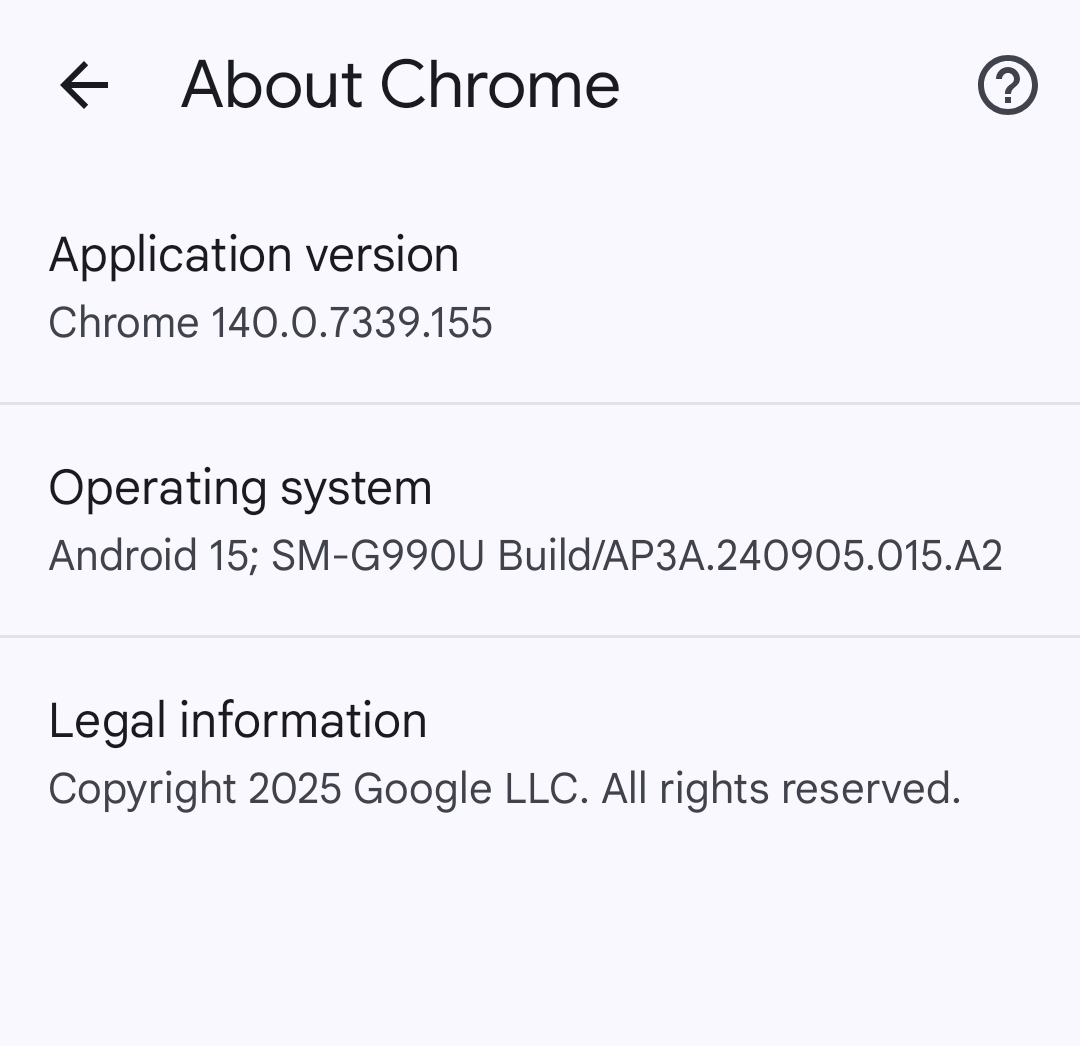
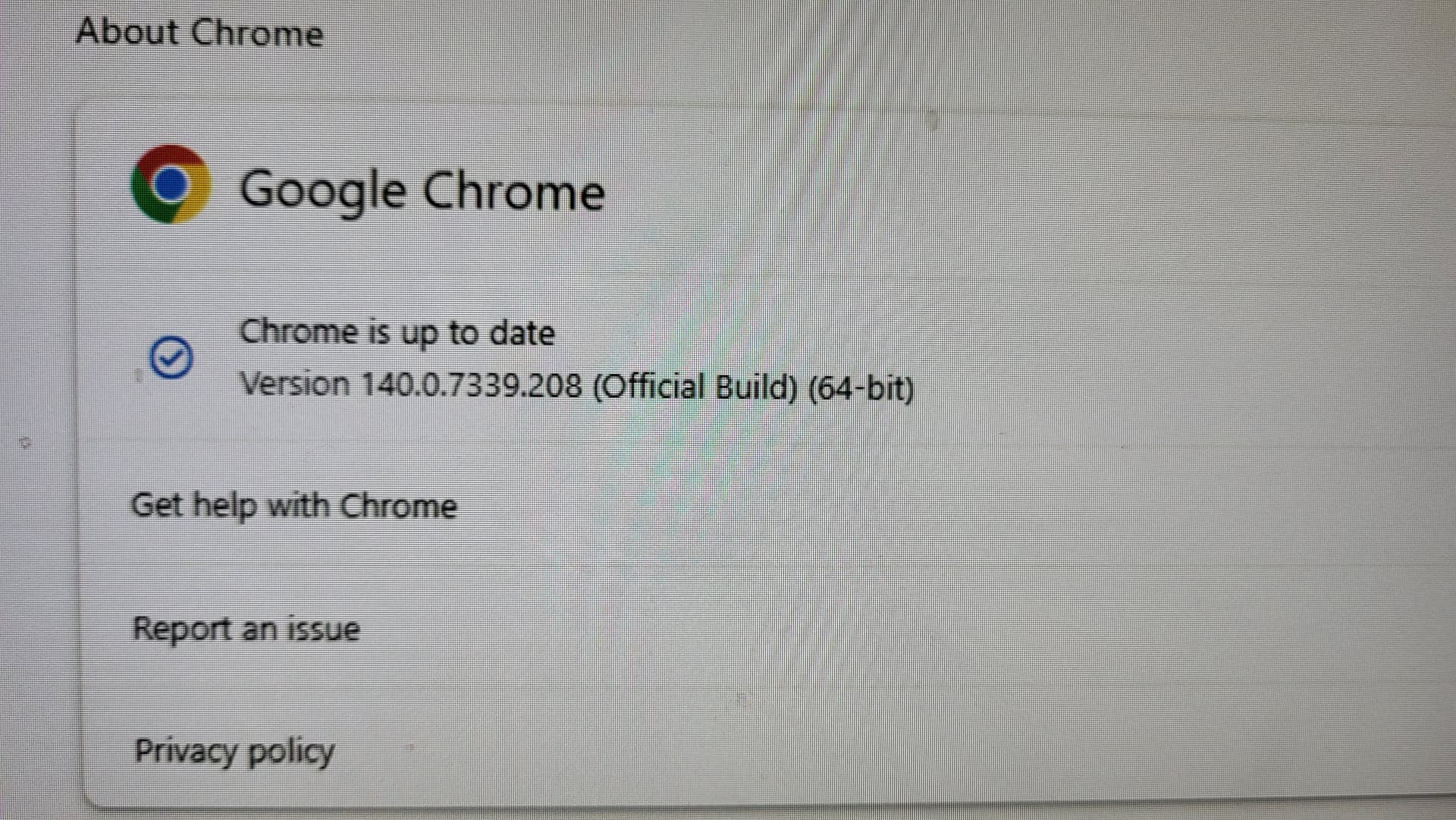
Would you all (or anyone else) let me know what operating system and browser you’re using when doing this?
I am able to re-order steps okay via drag-and-drop (with scrolling, if necessary) using Chrome 140.0.7339.186 on Windows 11. The process doesn’t always feel intuitive: sometimes I need to play around a little bit to find the spot at the top that causes the scrolling to happen, but generally hovering at the very top of the window (just below the address bar) initiates scrolling for me.
I figure experiences may be different on other browsers, and problems with touch-screen devices (like iPads or phones) would not surprise me. Please share any details you can.
Thanks!
(If anyone notices a technical issue in the future, feel free to report it via our Contact Us page.)
On my phone, I can get a very slow scroll to happen. It does not jump to the top after I “drop” a step in place. I don’t go through a web browser or the Lines app. I have an old app icon, user created apparently. It appears to be in the format of a web browser for mobile view. But I can’t be certain of that. My default browser is Chrome.
I did find the sweet spot for scrolling up, at least on this device. Sometimes, not always and not atm, after dropping a step in place, the screen will auto scroll up to the first step.
This has gotten better in the last 2 or 3 weeks. But it did happen to me a couple times this week. I noticed the improvement right around the time we noticed a change in the reply box. Others here said that was a software update from the platform TP uses. Could be coincidence though.
Win 10 22H2 (because I don’t feel like going through the after-update hassle of turning off all the new Bloat) w/ Chrome 140.0.7339.128. Re-ordering works well with plans that have a smaller number of steps, however plans where the destination position is Above/Below the Fold rarely works and I resort to pulling the selected step in stages.
Thanks for sharing the experiences and screenshots!
On my phone (Android/Chrome) I can get some slow scrolling; if I am able to hold the step closer to the top, it seems to move a little faster. Our expectation is that most folks will use the Lines app on touch-screen devices, and moving steps should work better there.
On my Windows system, dragging steps with scrolling seems fine in Chrome and Edge. I need to hold the step very close to the bottom or the top of the window to get it to scroll, but it works at a reasonable speed when I do that.
I’m trying to think of what might be unique about a plan, a step, or a browser that would cause the scrolling not to happen. There have been times when I’ve had my window close to the bottom of the screen and thought I was holding the step near the bottom of the window (but I wasn’t because the rest of the window was off my screen), but I doubt anyone has done that here and not realized it.
I have not tried to address the “auto-scroll to top” issue that some one identified. I think I’ve seen that before, but that may have been after doing something else to a plan (not just moving a step). I have not witnessed it today when I’ve moved steps around with dragging-and-dropping.
This may be true day of but the desktop version of making plans is just so much more user friendly. More than a few in the forums dislike the Lines app for modifying touring plans.
I can expand on that if you would like but maybe one topic at a time, lol.
Yes, I think that is why I was unable to do so initially. Now that I have tried your method it’s not a problem. But that wouldn’t be apparent to me and maybe not to a new user. I did have the same issues as @gingerSnaps543222 is having. When you move the cursor and step to the top you don’t expect to have to go that far up and subsequently the step would only move with the mouse to the top of the viewing page and sometimes just 1 step more but that would be the limit.
This may be true as it doesn’t happen all the time now. I will be more vigilant when this happens and try to make a detailed accounting of the actions leading up to it. If it happens again, I will report back.
But I do want to mention that it was happening all of the time for me prior to the most recent software update just 2 or 3 weeks ago (platform, not TP supposedly) I can dive into the daily open threads and see if I can get an exact date if this would be helpful. It did happen over a weekend, iirc.
ETA: I tend to make a lot of TPs. Maybe more than average. So I may experience these things more frequently. I tend to have longer, detailed plans as well.
Thank you for all of your hard work!
I am trying and trying and I cannot get step 14 on my plan in Edge to go more than a little past what I can see. I am holding it various places in the top of the browser and nothing. My Edge browser is maxed out but that doesn’t seem to be the issue that it’s going over the top of what I can see cuz it moves some, just not much.
I also have the issue where when I move a step, add a new step, basically change anything, it automatically brings me back to the top of the list. I thought it was intentional (although annoying for myself).
If it has to bring you somewhere instead of just staying where you were, I feel like it should bring you to the Optimize/Evaluate button area, not the top.
Chrome is up to date. Version 140.0.7339.208 (Official Build) (x86_64)
On a Mac laptop if that matters. I use the two finger scroll on the touch pad to get the page to move up and down when moving steps so haven’t had issues with the reordering like others.
I don’t think we did anything intentional one way or the other regarding whether any scrolling happens when you manipulate steps, and we’re amenable to improving our software.
Right now, though, I don’t see this on Chrome: when I add, remove, or move a step, the screen does not scroll – it just stays where it is.
I don’t have any ideas right now regarding what might cause that to happen, but it could vary based on number of steps or something like that.
Just to double check I tried in Safari (Version 18.6 (20621.3.11.11.3)) and at first I simply moved a step in an existing plan and it stayed where I was on the page. Then I Evaluated the plan and tried again and that time it scrolled me to the top after moving the step and continued to bring me to the top after any change from that point on.
I always assumed the Optimize and Evaluate buttons used to be at the top of the page and the fact it brought me to the top after making an edit was a legacy from that state that had never been adjusted. I think preference would be for it to just stay wherever you are and let the user control when to scroll/move on the page.
This is a fairly new thing. It started when TP updated the look of their whole site, including TPs.
It has stopped for me so far. But now that you mention it, I do think it only did it after the first optimize or evaluate tap. It dont recall it auto scrolling up if I was moving “brand new” steps around.
Thank you all! The bit about the “scroll to top” behavior only happening immediately after an Optimize/Evaluate is useful.
I don’t understand what’s causing the drag/scrolling issue as well, but it sounds like in some cases using a different browser and making sure to “hold” in the right place may be a workaround.
Thanks again to whomever noticed the circumstances that generated the “unexpected automatic scrolling after dragging a step to move it” behavior. Although we want the plan to jump to step 1 immediately after an Optimize/Evaluate event, we did not want to repeat that behavior every time that you change the plan (via moving a step, etc.) afterwards.
I believe this issue is resolved.
There are a lot of nuances with the drag-and-drop behavior. In my experience, dragging-and-dropping works okay in a computer browser, but you need to be careful about where you “hover” to make the window to scroll up or down at a reasonable speed. Based on what folks shared here, trying a different browser might help if you’re having trouble in your usual browser.
I observed that drag-and-drop can be slow in a browser on a touch-screen device like my phone. Trying a different browser might work better, but if you need to move steps on a phone, I recommend that you use our Lines app to do so. We understand that it’s not the same experience, but it seems like the best option for now.
Today, Evaluate has had A LOT of hang time. I often have to refresh withy browser. And just now I had a conflict come up with a break and something else. It reworked my entire plan! And snow activate an old plan isn’t bringing me to my last version. Just some random version of steps that I started with. Many have been cut. This is frustrating. I’ll start over tomorrow.